

Fake CAPTCHA Scam: The ClickFix Windows+R Trap Explained
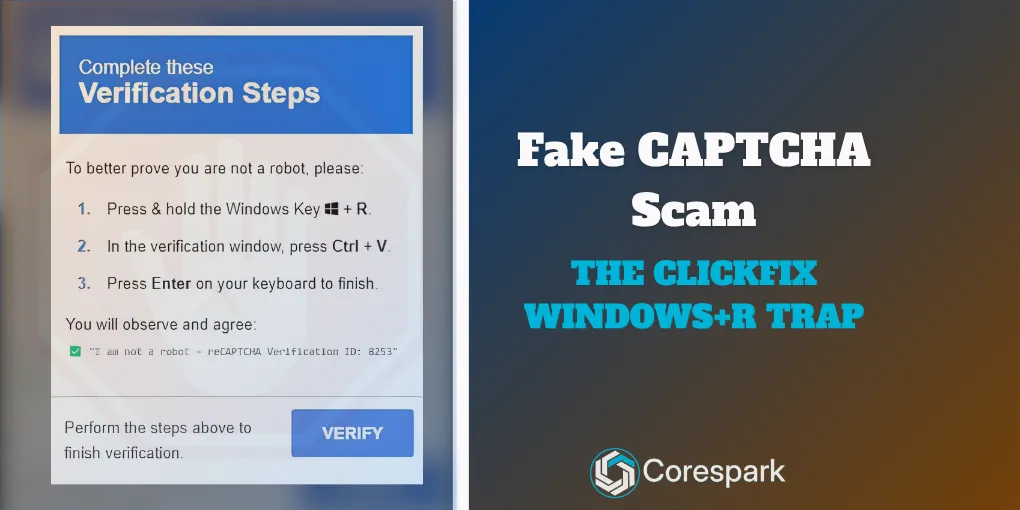
A fake CAPTCHA that tells you to press Windows+R, paste text, and press Enter is a social-engineering trap. It asks you to run a command on your computer to “prove” you are human. A real CAPTCHA has no reason to ask you to launch Windows Run or execute pasted instructions. MITRE ATT&CK catalogs this pattern as User Execution: Malicious Copy and Paste (T1204.004); Proofpoint has also documented fake CAPTCHA prompts in its ClickFix threat research.
What is the fake CAPTCHA scam?
The fake CAPTCHA scam disguises a malicious instruction as a routine human-verification check. Instead of selecting pictures or completing an in-browser challenge, the page asks the visitor to use keyboard shortcuts and run content placed on the clipboard. Security teams often call this style of social engineering ClickFix.
In the Windows example, the sequence is Windows+R → Ctrl+V → Enter. Windows+R opens the Run dialog. Ctrl+V pastes the clipboard contents into it. Enter tells Windows to launch what was pasted. The verification panel is only the lure; the dangerous action happens when the visitor runs the supplied command.
You may wonder where the pasted text comes from. Usually the fake page puts it on your clipboard for you, quietly, when you click its “I’m not a robot” box or “Verify” button. You never see the text or choose it. That is why the page can tell you to “just paste” without showing you what you are about to run.
Mac and other versions of the same trick
The same scam exists for other computers. On a Mac, the page may tell you to open Terminal and paste something there. Some versions tell you to paste into the address bar of the File Explorer window, and others claim to fix an error, install a browser update, or repair a meeting-software problem. The steps and the story change, but the request is always the same: paste something into your computer and run it. If a website asks for that, it is a scam on any device.
This is not a CAPTCHA vulnerability. The attacker is abusing trust in a familiar-looking page and persuading a person to execute code. MITRE describes the technique as tricking a user into copying and pasting malicious code, including through prompts that claim to fix an error or complete a CAPTCHA.
What can happen after you press Enter?
The command runs with the permissions of the signed-in user. Its effect depends on what the attacker placed in the clipboard and on the computer’s protections. It could start another program, retrieve additional code, or attempt to steal information. In reported cases, the goal is often software that steals saved passwords and the logins your web browser remembers, or that gives the attacker remote control of the computer. Stolen logins can lead to hijacked email, bank accounts, and business systems, and sometimes to ransomware, which locks your files until you pay. The CAPTCHA’s appearance does not tell you what the command does.
That uncertainty is the point: a visitor cannot safely judge a command from a fake verification screen. Do not paste it into Run, PowerShell, Command Prompt, Terminal, a browser console, or another prompt to “see what it is.” Do not photograph and share the command as a way to inspect it. Report the page and let a security professional examine it in a controlled environment.
How to recognize a fake CAPTCHA
Treat a verification prompt as suspicious if it asks you to leave the browser and operate your computer. Watch for these signs:
- It tells you to press Windows+R, open a terminal, or use another system tool.
- It asks you to paste clipboard contents and press Enter.
- It calls the command a verification step, browser fix, update, or way to restore access.
- It pressures you to act quickly or claims you cannot continue until you run the instruction.
- The page asks you to disable security features or approve an unexpected permission prompt.
A normal CAPTCHA may ask you to select images, type displayed characters, or confirm a checkbox. It should not ask you to run a command on your device. If a page does, close the tab. If you still need the service, open its address from a bookmark or type the known address yourself rather than following the suspicious page’s instructions.
What should you do if you saw the prompt but did not run it?
Close the tab and do not follow the steps. If you clicked a button that copied something, the text may now be in your clipboard; copying harmless text replaces it. Copying alone does not run the command in this scam pattern, but do not treat that as proof that every interaction with a suspicious site was safe. Avoid opening downloads from the page, and tell your company’s IT contact if this happened on a work device.
If you reached the page from an email, advertisement, search result, or message, do not revisit it to investigate. Share the page address with your IT or security team using your organization’s approved reporting channel. They can check whether the link appeared elsewhere and warn other staff.
What if you already pasted the command and pressed Enter?
Treat it as a possible security incident and act quickly. If this is a work computer, contact your IT or security team immediately and follow its containment instructions. On a personal computer, disconnect it from Wi-Fi or wired networking while you get help. Do not use the affected device to sign in to email, banking, or work accounts.
Keep the device available for investigation. Do not try to delete files, run cleanup tools, or reinstall the operating system before your IT team or incident responder advises you. Write down the page address, the time, what you clicked, and whether a command window appeared. Do not copy the suspicious command into a message or run it again.
From a separate, trusted device, change passwords for accounts that may have been exposed, starting with email and work identity accounts. Ask your IT team to revoke active sign-in sessions and review account activity; changing a password alone may not end sessions that were already stolen. Enable multifactor authentication where available, and change reused passwords on other services. If payment or banking details may be involved, contact the financial institution through its official app or number.
For organizations, follow the incident-response plan: contain the endpoint, preserve useful evidence, assess affected accounts and systems, and restore service only after the team understands the scope. NIST’s SP 800-61 Rev. 3 incident-response guidance provides a framework for preparing for, detecting, responding to, and recovering from cybersecurity incidents.
How small businesses can reduce the risk
Make the safe response easy to remember: a CAPTCHA will not ask staff to run a command. Tell employees where to report suspicious pages and whom to contact if they followed one. A fast, blame-free report gives the organization more time to contain a possible compromise.
Pair that guidance with technical controls. Use standard user accounts for everyday work, keep operating systems and browsers current, and deploy endpoint protection that your team monitors. Application controls can limit which programs run. Multifactor authentication and session monitoring can reduce the damage if credentials or browser sessions are stolen, though they do not stop a user from launching a local command.
Add the response steps to staff onboarding and rehearse them: who isolates a device, who revokes sessions, how to preserve logs, and how to contact affected customers or providers if needed. For a broader view of small-business exposure, see our guide to security threats facing rural small businesses in 2026.
Fake CAPTCHA scam: frequently asked questions
Can a real CAPTCHA ask me to press Windows+R?
No. A web CAPTCHA may ask you to select images, type characters, or confirm a checkbox. It should not ask you to open Windows Run, paste clipboard contents, launch a terminal, or execute a command. If verification instructions cross from the browser into a system tool, stop and close the page.
Am I infected if I only opened the page?
Opening a page does not complete the copy-and-paste execution step described here. Close it and do not run anything it copied or downloaded. This does not rule out a separate browser vulnerability or another action you took, so report the event to IT if it involved a work device or sensitive account.
What should I do if I ran the command?
Treat the computer as potentially compromised. Contact IT or security, disconnect it from networks if instructed or if it is your personal device, and avoid signing in on it. From a separate trusted device, reset potentially exposed passwords and ask your organization to revoke sessions and investigate before cleaning or reinstalling the affected computer.
Sources
- MITRE ATT&CK, “User Execution: Malicious Copy and Paste,” Sub-technique T1204.004 (accessed October 4, 2026).
- Proofpoint, “Security Brief: ClickFix social engineering technique floods threat landscape” (accessed October 4, 2026).
- National Institute of Standards and Technology, SP 800-61 Rev. 3: Incident Response Recommendations and Considerations for Cybersecurity Risk Management (accessed October 4, 2026).
Need a technology partner in the Yadkin Valley?
Corespark helps local small businesses in NC and VA with tech strategy, web development, and more.
Talk to Corespark →More from the Corespark Blog

PHP2Shell: What WordPress Site Owners Need to Know
PHP2Shell affects WordPress sites with unpatched PHP. Learn how Northwest NC and Southwest VA owners can check the PHP v...

Put Your Antique Shop on the Day-Trip Map
Help antique shoppers plan a stop with accurate hours, useful photos, clear categories, directions, and a website that r...

The Photography Website That Helps Couples Say Yes
A photography website should help clients compare services, see the right work, understand the process, and take the nex...